Assembly (beta)
You can use the Assembly application within Casa to do all of the following:
- Browse and View Assemblies
- Add New Parts To Assemblies
- Edit Assembly Part Stages, Quantities
Browsing Assemblies
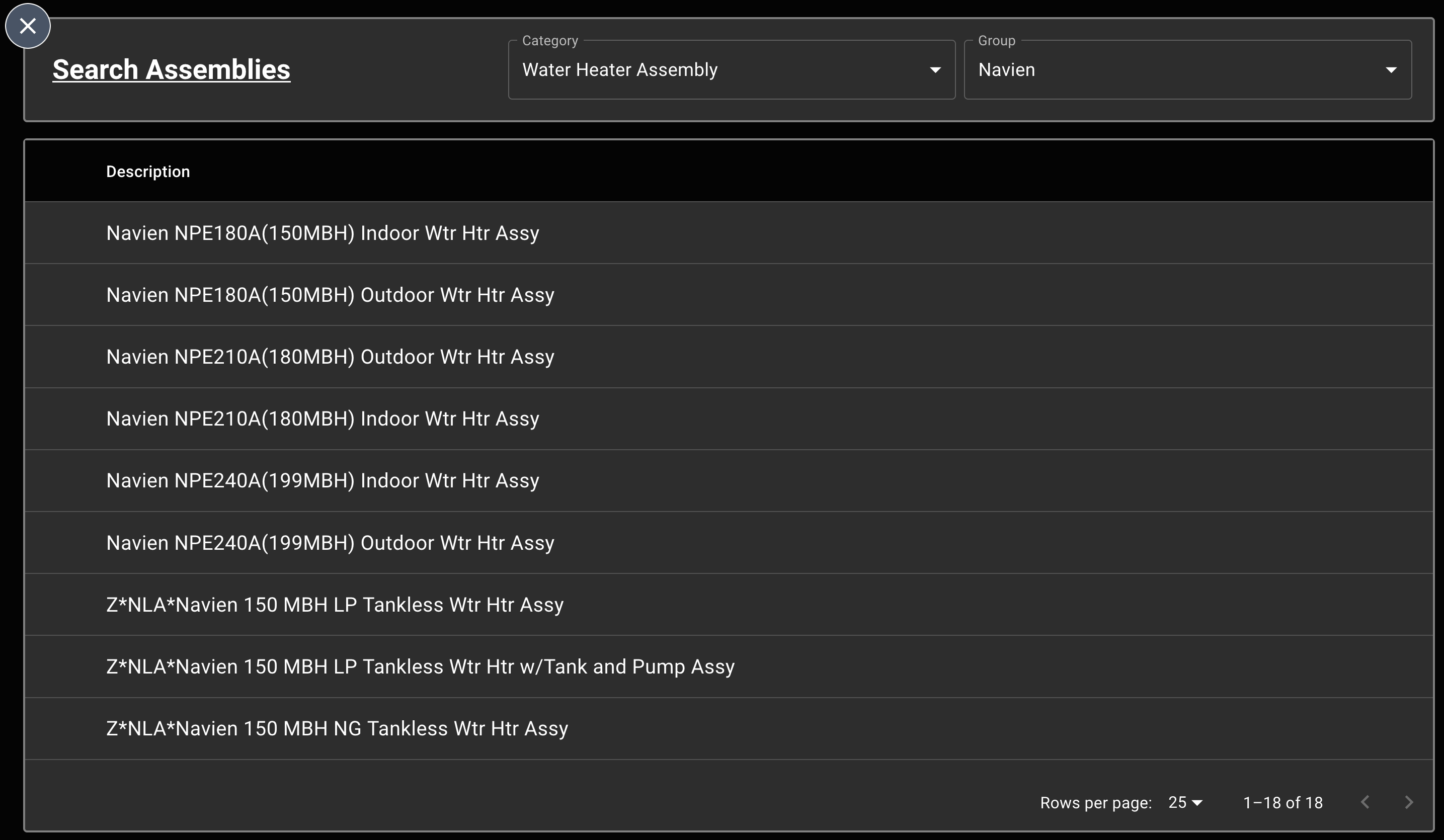
Browsing assemblies in the new Casa is simple - just select a category and a group from the dropdown components, and the search results will populate automatically.
View an Assembly
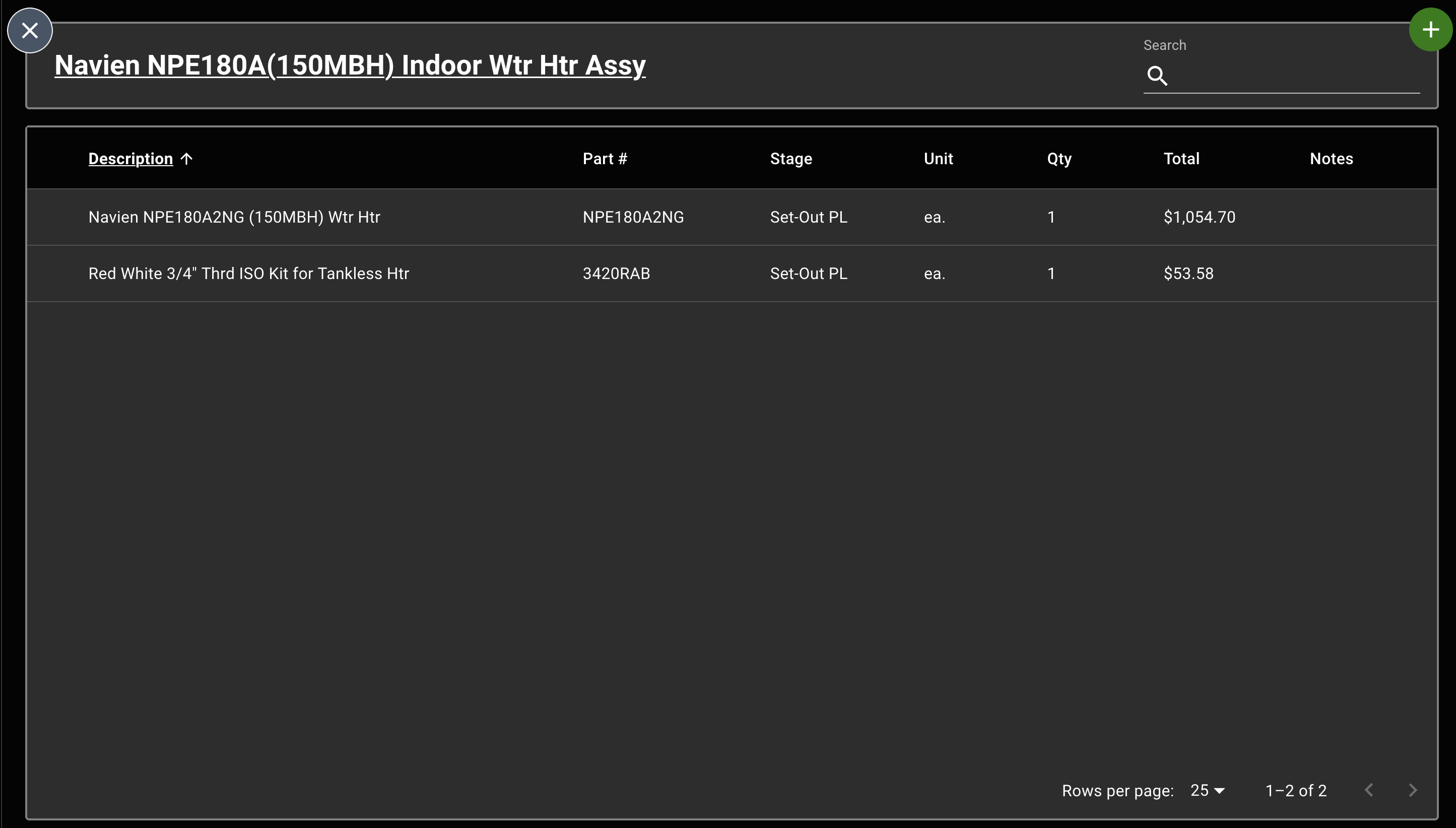
To view a specific assembly, click on it and Casa will show you all of its parts. You may also use the search bar in the top right to filter parts by description/part number.
Add a New Part to an Assembly
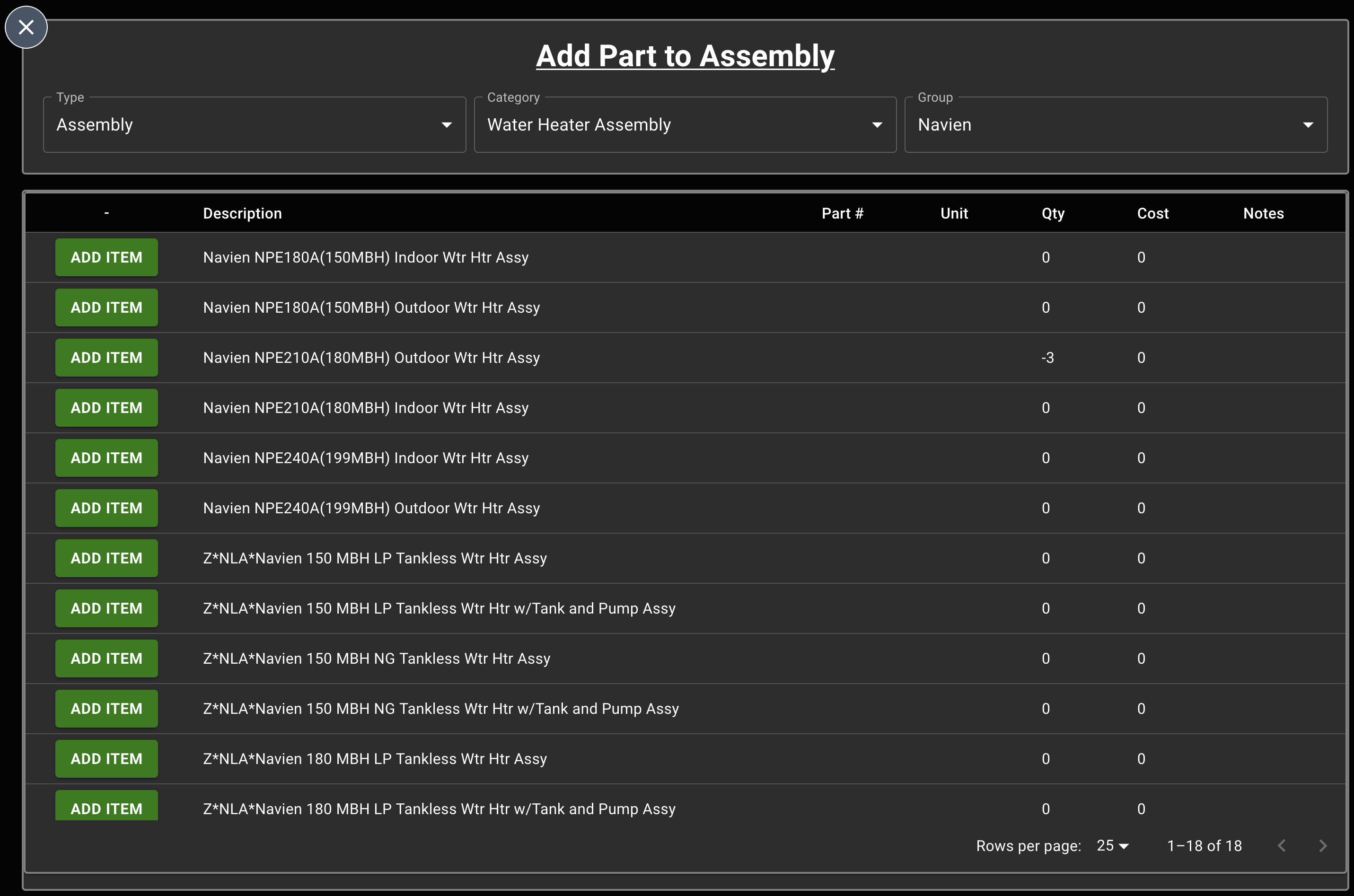
To add a new part to an assembly, click on the circular + icon in the top right corner of the table. Select the appropriate type, category, and group for the part you would like to add, and Casa will display the search results automatically. Once you find the part you're looking for in your search results, just click the Add Part button to add it to this assembly.
View Assembly Part Data
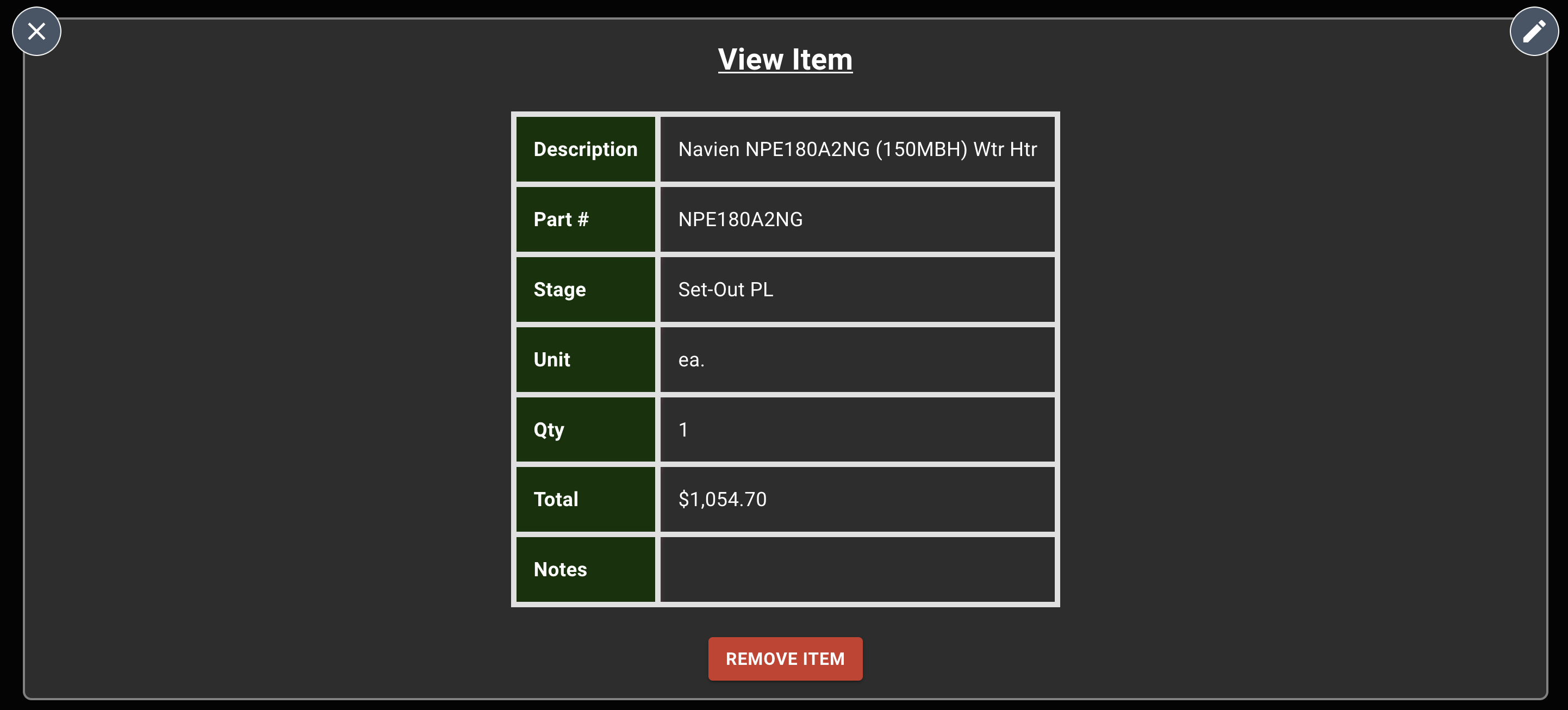
To view assembly part information, tap on the part you would like in the main assembly table. From there, you will be directed to another view that displays all assembly data recorded for that part.
Edit Assembly Part Stages/Quantities
To edit assembly part stage/quanitity information, simply click on the pencil icon in the top right corner. Edit the fields you would like, and click the save icon in the top right to record your changes.
